For towns and organizations
Track every candidate's campaign finance filings in one place
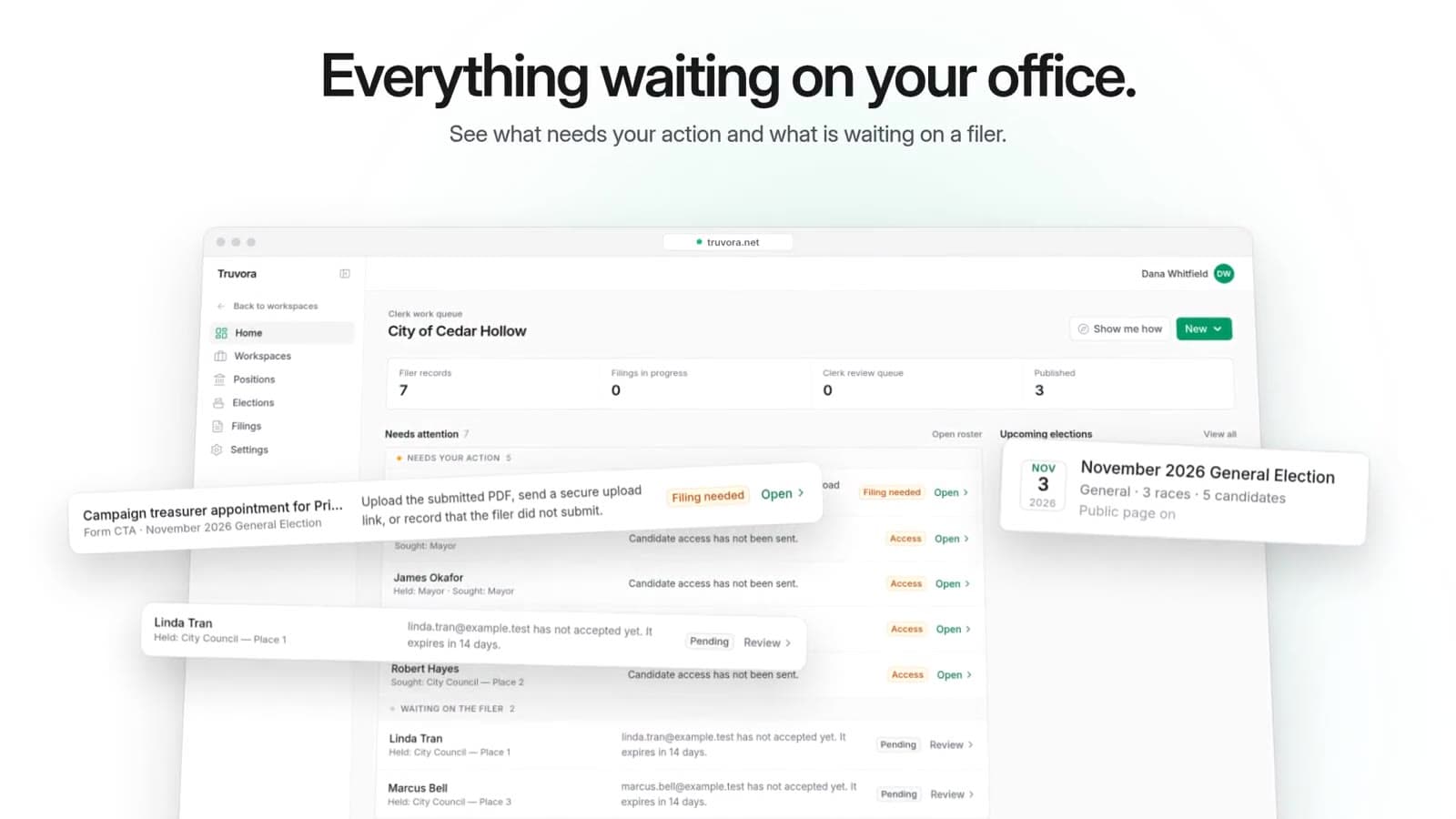
Truvora gives your office one workspace for the campaign finance reports of every candidate and officeholder. You can see who owes what, what has been filed, and what is public.
How it works
- 01
Add your offices and elections
List the offices your organization fills by election and who holds each one now. Then create an election and add a race for each office on the ballot.
- 02
Invite your candidates and officials
Enter a name and an email address. Each person gets a link to claim their own workspace, where they record finances and prepare their reports.
- 03
Review filings and publish them
Filings arrive in one queue, whether they come through Truvora or on paper. Review each one, prepare a public copy, and publish it.
Elections
See where each candidate stands
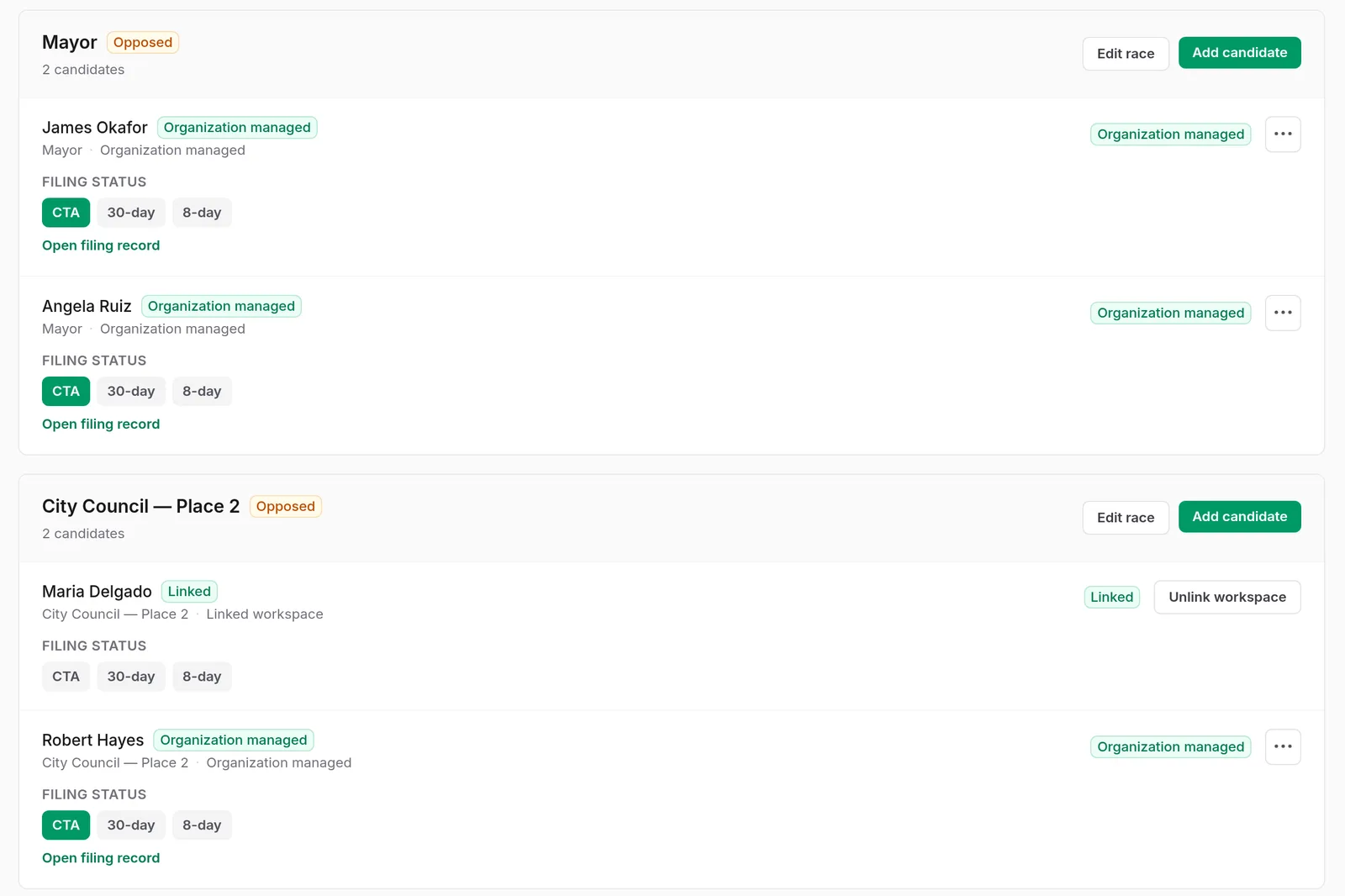
An election holds its races and the candidates in each one. Every candidate's filing status sits under their name on the ballot.
- Invite candidates by email so they can file on their own.
- Keep an organization-managed record for a candidate who will not use Truvora.
- Truvora builds each candidate's filing deadlines from the ballot.
What your office can do
A work queue on Home
Home lists what is waiting on your office, like a filing to review or an invitation nobody has accepted yet.
Positions
Record each office and who holds it now. For boards, add a seat for each place.
Paper filings
Someone filed on paper? Upload the PDF yourself, or send the filer a private one-time upload link.
Public copies
You prepare a public copy during clerk review. Tools help you find and black out addresses and phone numbers. The signed original is never overwritten.
Approve, then publish
Approve a filing or send it back to the candidate. Approved filings move on to publishing.
Access for your staff
Each member of your office gets one of four access levels: Super admin, Admin, Editor, or Viewer.
Public disclosure portal
A public page residents can search
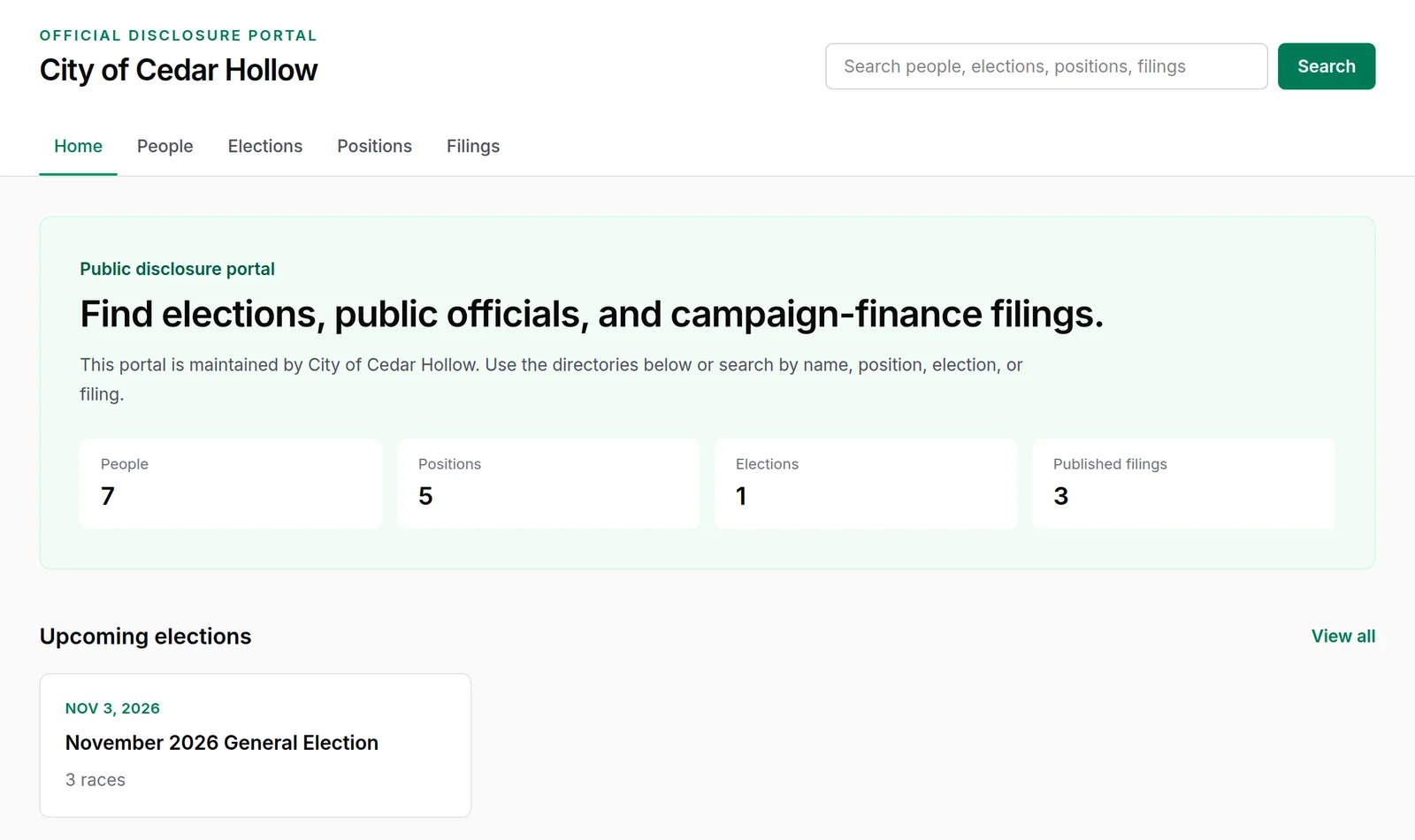
Your public disclosure portal lists elections, officials, and published filings. Copy its link from Settings and put it on your organization's website.
- Residents search by name, position, election, or filing.
- Each election has its own page with the ballot and published reports.
Candidates know what your office will see
When you invite someone to connect, Truvora shows them a consent screen before they accept. It lists what your office will see and what it will not.
Your office will see
- Their name and the candidacy or officeholder records your office assigns
- The filing assignments your office issues
- Filings where your office is the filing authority
Your office will not see
- Their finance ledger of contributions, expenditures, and balances
- Who is on their workspace team
- Filings or assignments that belong to other organizations
Set up your organization's workspace
Truvora is open to a small group of users right now. To set up a new organization workspace, email truvoraapp@gmail.com and we'll approve it.