For candidates and officeholders
Prepare your campaign finance reports one step at a time
Record donations and expenses as they happen. Truvora fills in the official Texas Ethics Commission forms, and you review, sign, and file them.
How it works
- 01
Tell Truvora your race or office
Add the race you are in or the office you hold. If your city invited you, your race may already be there.
- 02
Record donations and expenses
Enter who, how much, and when, as each one happens. Truvora puts it on the right report.
- 03
Review, sign, and file
Open a report, check the numbers, and sign it on screen. File it with your filing office, then mark it filed in Truvora.
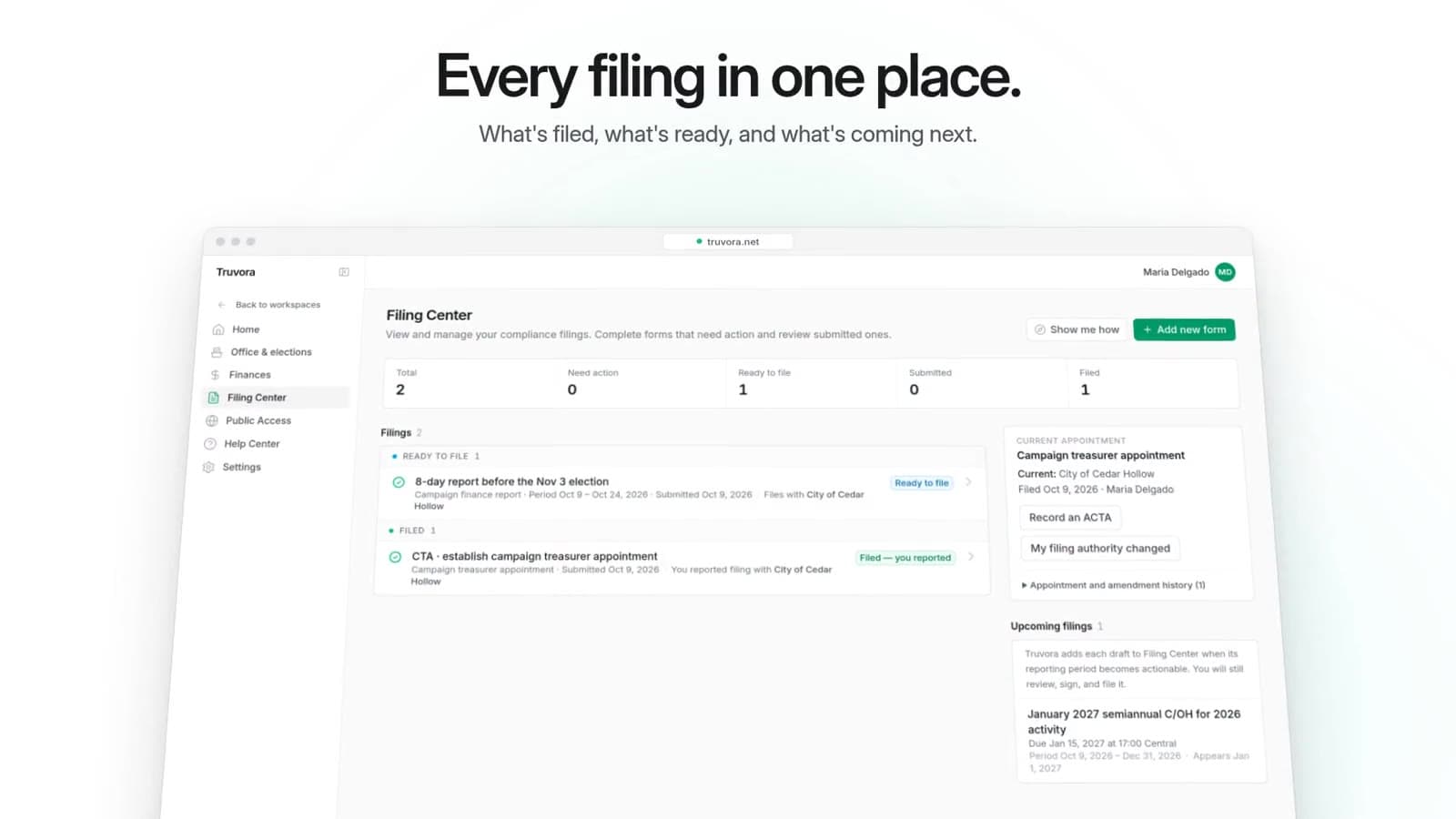
Filing Center
See what is due and when
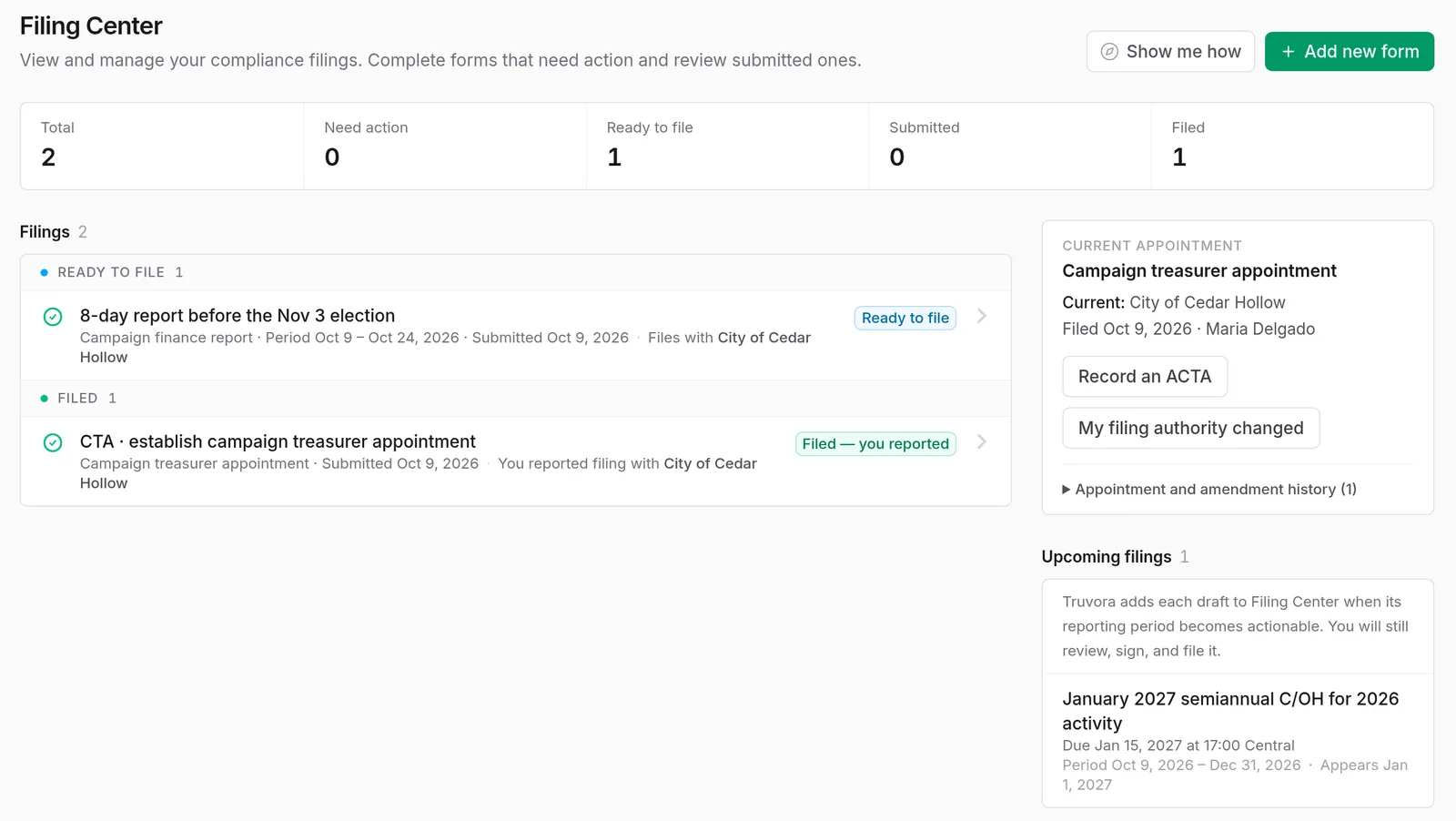
The Filing Center lists your filed, ready, and upcoming filings. Each upcoming report shows its due date.
- Candidates start with Form CTA, the campaign treasurer appointment.
- After that, Truvora adds each campaign finance report with its due date.
- Home shows what needs you next, with a button that takes you to it.
What you get in your workspace
Guided steps
Form CTA and Form C/OH are split into short steps. You answer one section, then move to the next.
Details filled in
Your name, phone, and mailing address go on every form Truvora prepares. Change them once in Settings.
The official PDF
Truvora generates the official Texas Ethics Commission PDF from your answers.
Signing on screen
Sign the finished form on your screen. Then file it with your filing office.
Help Center
Short guides in plain English, like when a donation needs to be itemized or how to record a loan.
A public page, if you want one
Turn on a personal public page to get one link where anyone can see your published reports.
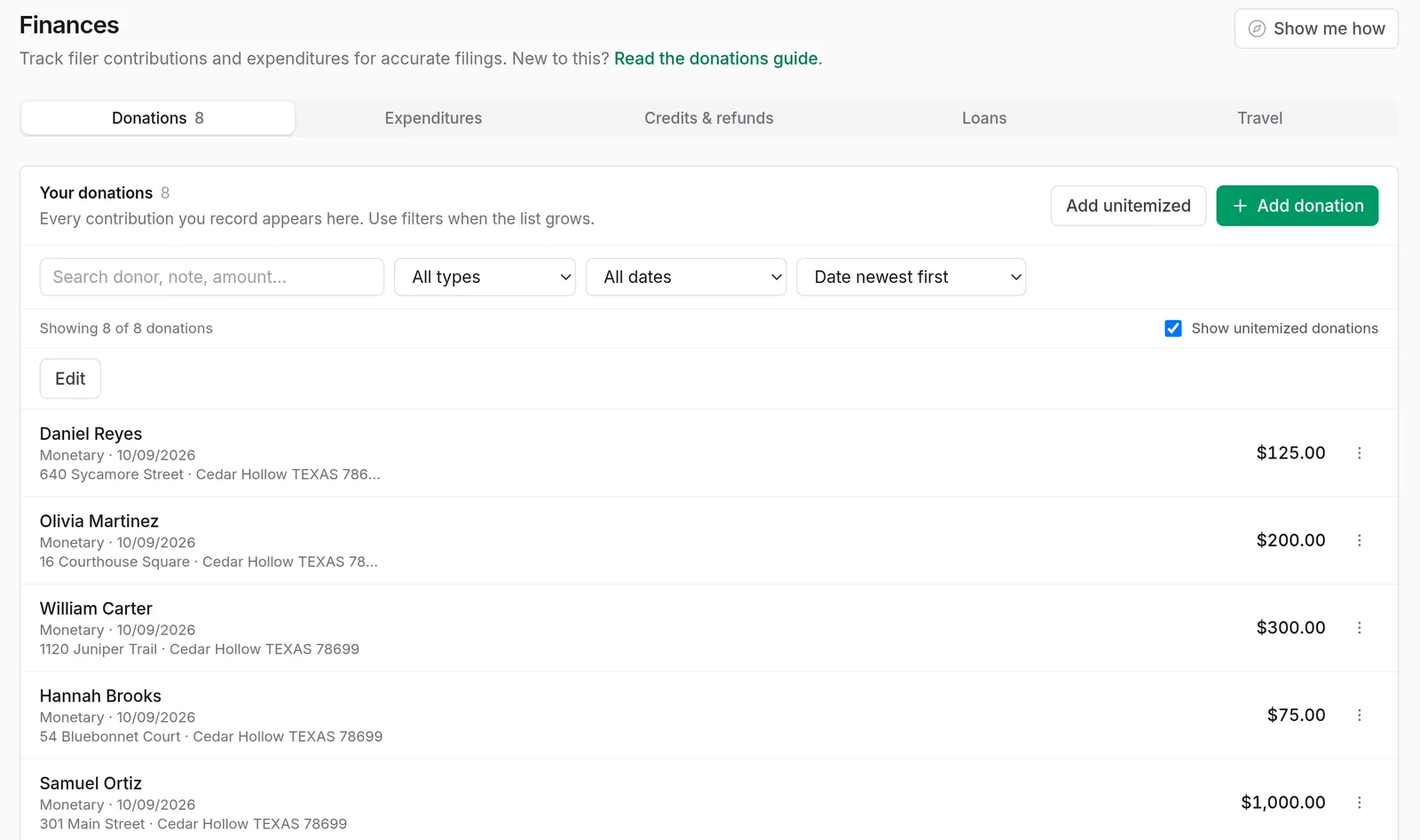
Finances
Record money as it moves
The Finances ledger holds your donations, expenditures, credits and refunds, loans, and travel. Truvora fills in each report's totals and schedules from it.
- Add a donation with who gave it, how much, and when.
- Small donations that do not need to be listed one by one can go in as a single total. The Help Center explains which ones qualify.
- Search and filter the list as it grows.
You see what your city will see before you connect
If your city uses Truvora, it can invite you to connect. Before you accept, a consent screen lists what the city will see and what it will not.
Your city will see
- Your name and the candidacy or officeholder records the city assigns
- The filing assignments the city issues
- Filings where the city is the filing authority
Your city will not see
- Your finance ledger of contributions, expenditures, and balances
- Who is on your workspace team
- Filings or assignments that belong to other organizations
Start your workspace
Truvora is open to a small group of users right now. To set up a new personal workspace, email truvoraapp@gmail.com and we'll approve it. If a town invited you, you can accept that invitation right away.